

near-sandbox, since it’s the easiest and fastest option to start with. Our goal for this tutorial is to set up a local network, create a wallet account on it, deploy a contract, and finally run a frontend application that interacts with this contract directly through the local blockchain.
Prerequisites
Before we begin, make sure you have a few essential tools installed.- NEAR CLI - the CLI for interacting with the NEAR blockchain;
- cargo-near - the CLI that simplifies building/deploying Rust smart contracts.
Walkthrough
Step 1. Setup and boot up sandbox node
First, run the following command:/tmp/near-sandbox in the command above. Once it’s finished, you’ll find several files created in that directory:
config.json- main node configuration, defining network ports, storage paths, runtime settings, etcgenesis.json- defines the initial blockchain state, including default accountnearand the validator account (by default, it’stest.near)validator_key.json- validator’s keypair used to produce blocksnode_key.json- keypair used for signing network packets
Step 2. Import test.near account
In this step, we’ll import the default test.near account that was created during near-sandbox initialization. We’ll need this account later to deploy our smart contract, so let’s prepare it now.
First, make sure your near-cli-rs knows how to connect to your local network. If you already have a localnet configuration, you can skip this step. Otherwise, you have two options:
- Interactive CLI
- Edit config.toml directly
The
wallet_url and explorer_transaction_url are set to placeholder values since no local wallet or explorer is running. For a full description of all available connection fields and when each one is needed, see the Localnet configuration values section in the CLI reference.near-sandbox, it created a file named validator_key.json inside the home directory. This file contains the secret key for the test.near account, which we’ll need to import into near-cli-rs.
To view the key, run:
secret_key value and import it into near-cli-rs by running the following command (replace <SECRET_KEY> with the actual key):
test.near and press Enter. You’ll then be asked to choose a keychain for storing the credentials, select Legacy Keychain, as it stores the keys directly in the file system, which is the simplest and the most convenient option for localnet.
Step 3. Deploy the smart contract
In this step, we’ll deploy a simple Hello World smart contract to ourlocalnet.
Before deploying, we need to create an accont to which a contract will be deployed. Since we’ve already imported the test.near account, we can use it as the parent account to create a new subaccount:
hello-world.test.near with an initial balance of 10 NEAR.
Next, clone the Hello World repository and navigate to the contract directory:
.wasm file, and deploys it directly to the hello-world.test.near account on localnet.
Step 4. Create user’s wallet account
In this step, we’ll create a user account inside a wallet that can connect to ourlocalnet. This is important because frontend applications typically interact with contracts through a wallet connection. Not every NEAR wallet supports localnet connections, but for this tutorial, we’ll use Intear Wallet, which is fully compatible.\
Navigate to https://wallet.intear.tech. If you don’t have an account yet, create one or import any existing account. It doesn’t matter which one, this step is just to get you inside the wallet interface.
Once you’re in the wallet, open the Settings panel from the sidebar, then find the Developer tab. You’ll see a Localnet subsection where you can add your own local network configuration. Click Add, and fill in the fields as follows: set the RPC URL to http://127.0.0.1:3030 and the Network ID to localnet. Then click Save.
If everything is configured correctly, you should see a small, green Online badge appear next to the new network indicating that it’s connected. Here’s how it should look like:
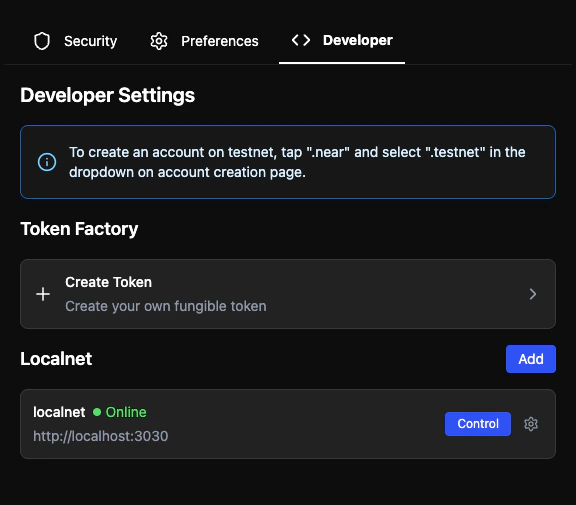
Control button on the right side of the localnet entry. Find the Create New Account section, type a name for your new account (in our case, it’s user.local) and click Create.
Once the request goes through, the new account will appear in your wallet. At this point, you have a valid account on your localnet that can sign transactions through Intear Wallet.
Step 5. Spin up and interact with frontend application
Start by cloning the repository:pnpm:
Login. When prompted to select a wallet, choose Intear Wallet, Web version. And make sure you connect using the account created earlier, in our case, it’s user.local.
Once connected, you’ll see an input field and a button to update the greeting. Type any new greeting into the input and click Save. You’ll be redirected to the wallet to approve a transaction. Once approved, the transaction will be sent and executed on localnet node.
Return to the frontend and notice that the greeting has changed.
You’ve now gone through the entire process of setting up a local NEAR environment — from running the Sandbox and deploying a contract to connecting a wallet and interacting with it through a frontend. With this setup, you can experiment freely, test your contracts safely, and build end-to-end decentralized applications without touching mainnet or testnet.